


Have you ever found yourself staring at a blank slide, wasting hours just trying to get the alignment right? I have been there too. You have the data and the ideas, but spending valuable time adjusting font sizes, searching for stock images, and fixing broken layouts is exhausting. The struggle to create an engaging presentation often overshadows the actual content you want to deliver.
In this guide, I will walk you through a potential solution: creating presentations using Gamma App.
This isn’t a magic wand that solves every problem, but it is a tool designed to handle the heavy lifting of design. My goal in this Gamma App review is to show you how I generate a slide deck in just a few minutes without needing any graphic design skills. We will look at what works, what doesn’t, and whether it is a practical tool for your daily workflow.
Also Read: The 5 Best AI Presentation Makers
What is Gamma App?
To start this Gamma App AI review, we first need to clearly define what the tool is and how it differs from the software you are used to.
Gamma App is a cloud-based AI presentation maker that focuses on content generation over manual formatting. Unlike traditional slide builders like PowerPoint, Google Slides, or Keynote—where you start with a blank canvas and build element by element—Gamma operates more like a smart document editor.
The core promise of Gamma is speed and automation. It allows you to generate full presentations, documents, or webpages using a variety of input methods:
- Text Prompts: You describe the topic in a chat interface, and the AI builds the deck.
- Outlines: You provide the structure and bullet points, and Gamma fills in the details.
- Imported Files: You can upload notes, Google Docs, or Word files, and the AI converts the text into visual slides.
Once the initial draft is generated, Gamma offers a flexible editor where I can change themes, rewrite content using AI commands, and eventually export my work. It is designed for professionals who need “good enough” design instantly, rather than “perfect” design that takes hours.
Best Features of Gamma App
Gamma approaches presentation design with a unique philosophy. Instead of rigid slides, it uses fluid cards. Here is a detailed overview of its standout features based on my real-world testing.
- AI Presentation Generation: This is the engine of the platform. You feed the system a topic, and it generates a structured deck complete with headlines, body text, and relevant images. I found the AI is surprisingly good at summarizing complex topics into bite-sized bullet points that fit the slide perfectly.
- Multiple Input Options: Flexibility is a strong point here. You are not forced to start from scratch. You can paste a 2,000-word blog post, and Gamma will summarize it into key points across several slides. Alternatively, I often paste a simple bulleted list, and it expands those points into full paragraphs. This feature is particularly useful for repurposing existing content.
- Smart Layouts: Gamma uses a fluid layout system. If you add more text to a slide, the container expands automatically. You generally do not need to manually drag corners or resize images to make them fit; the app handles the spatial arrangement for you. This eliminates the frustration of text overflowing text boxes.
- Real-Time Collaboration: Similar to modern tools like Notion or Google Docs, Gamma allows multiple users to work on the same deck simultaneously. You can see your colleagues’ cursors, leave comments on specific blocks, and track changes in real-time.
- Export to PDF and PowerPoint: While Gamma is web-based, it acknowledges the business need for offline files. It offers export options for PDF (for printing/sharing) and PowerPoint (for presenting offline). However, as I will discuss later in this article, this feature has specific limitations regarding editability.
- Analytics: If you choose to share your presentation via a direct web link rather than exporting it, Gamma provides built-in analytics. You can track how many people opened the link and exactly which slides held their attention the longest.
How to make a presentation in Gamma App
For this section of our Gamma App review, I will focus on the most common use case: generating a presentation from a simple text prompt. Here is the step-by-step process I followed.
1. Access Gamma App

First, open Gamma App. If you already have an account, simply log in. If not, you can sign up for free. You do not need a credit card to get started. The free plan includes 400 credits. Keep in mind that each time you generate a new presentation or ask the AI to rewrite a large section, those credits will be used.
2. Select “Create New”
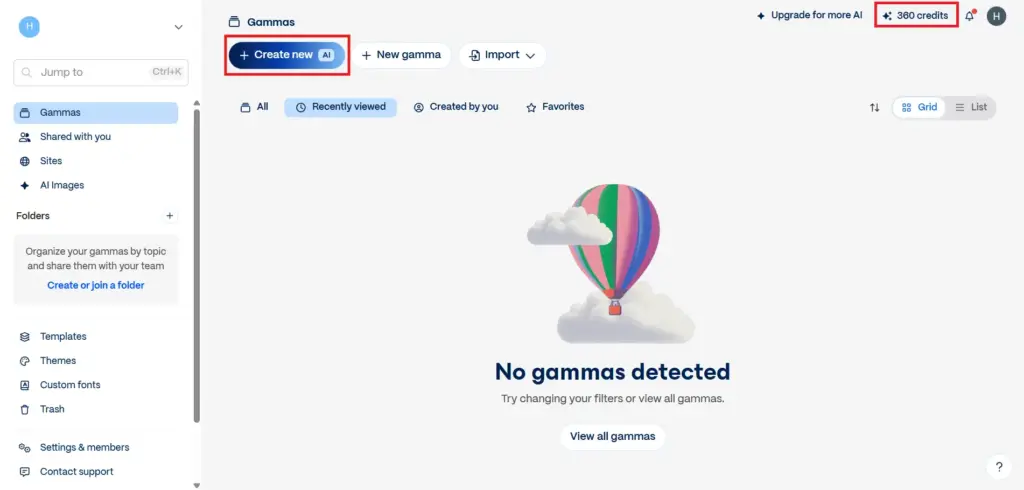
On your dashboard, you can see remaining ai credit in the top right. and for creating presentation with ai click the “Create New” button on the screen. You will be presented with four main AI options: “Generate” (from a prompt), “Paste Text”, “Import file or URL” or “Remix a template”. Select Generate for this example to make presentation with prompt.
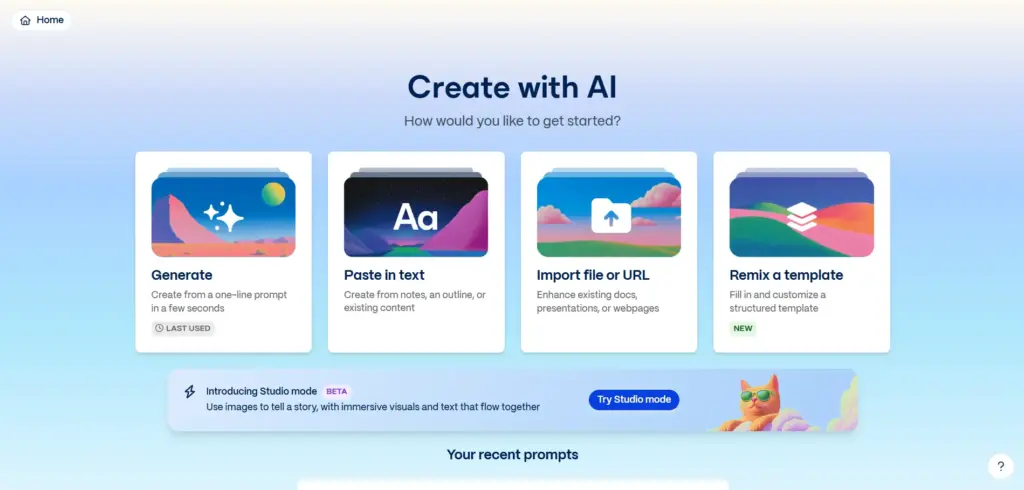
3. Choose “Presentation”
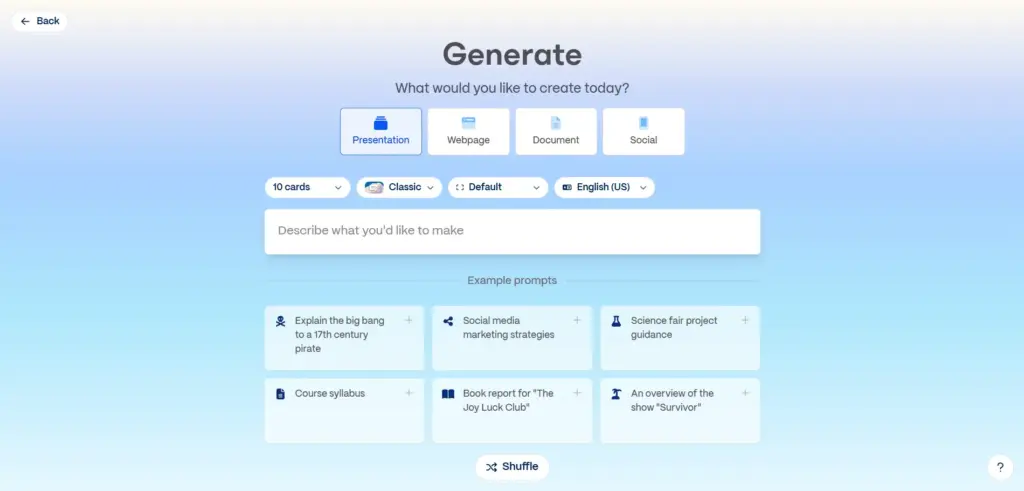
Gamma can also make documents and webpages, so ensure you click on Presentation to get the slide format.
4. Enter Your Prompt
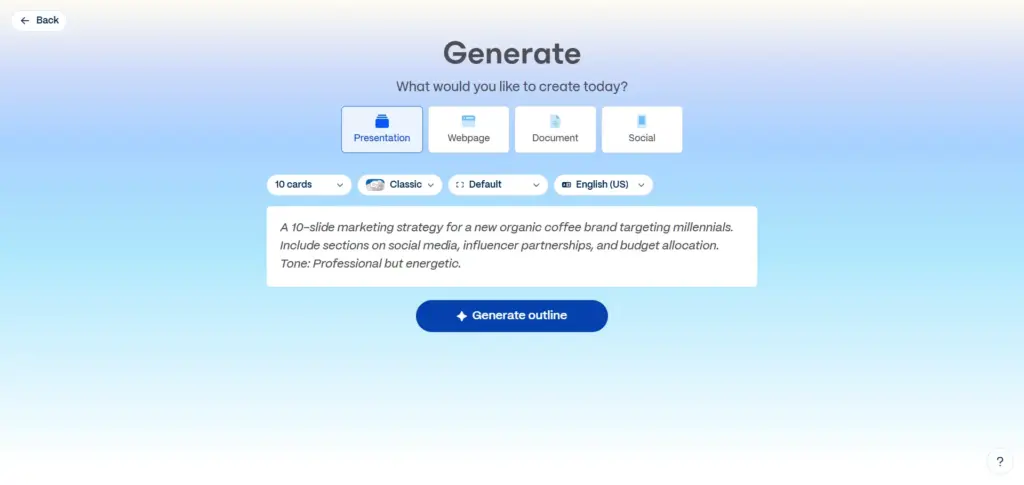
This is the most critical step. You will see a chat box asking for your topic. The quality of the output depends on your input.
Pro Tip: Don’t just type “Marketing Plan.” Be specific. Try something like: “A 10-slide marketing strategy for a new organic coffee brand targeting millennials. Include sections on social media, influencer partnerships, and budget allocation. Tone: Professional but energetic.”
5. Review the Outline
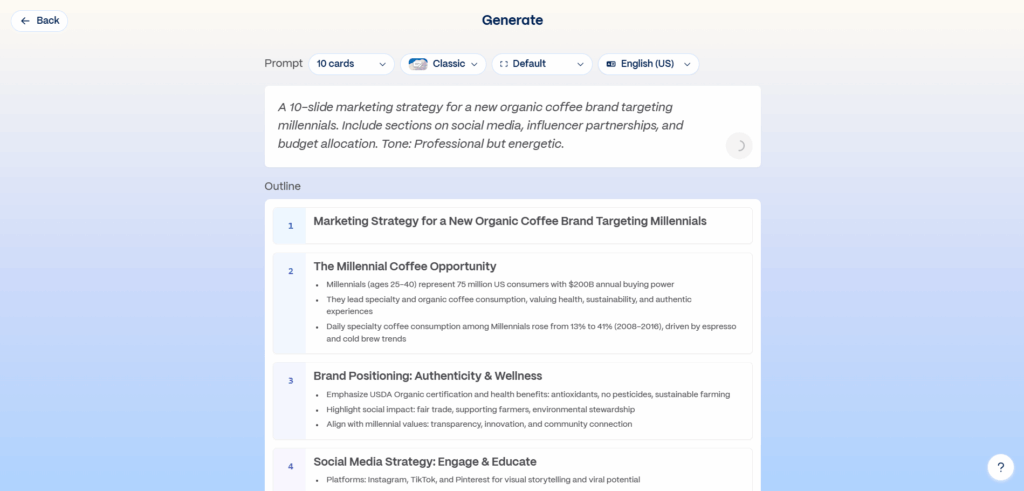
Before generating the full slides, Gamma will show you a bulleted outline. Do not skip this. Read through the points carefully. If the AI missed a key topic, add it now. I find it much easier to fix the outline at this stage than to delete and add slides later.
6. Select a Theme and Generate
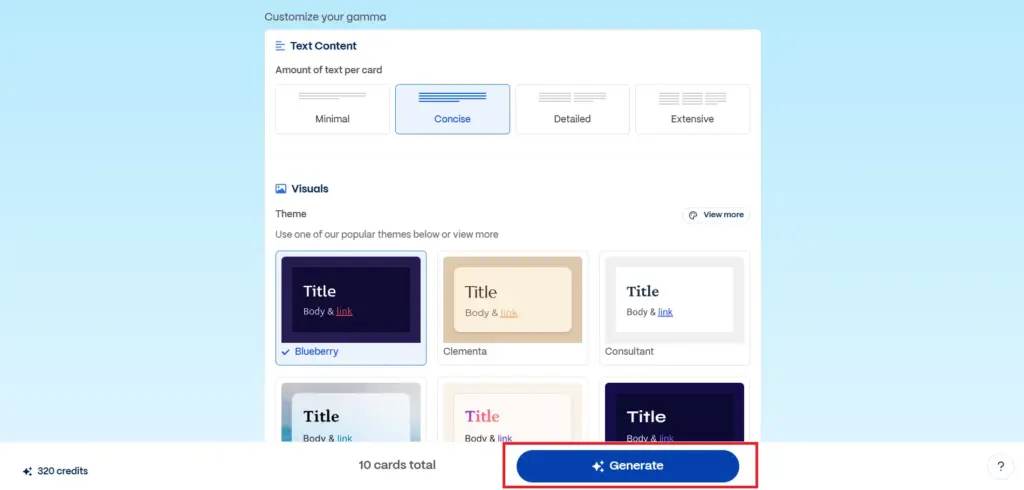
Choose a visual style on the right-hand panel. You can pick from corporate, colorful, or dark themes. The themes control fonts and color palettes automatically. Click “Generate.” The AI will build the slides before your eyes.
7. Customize & Share Your Presentation
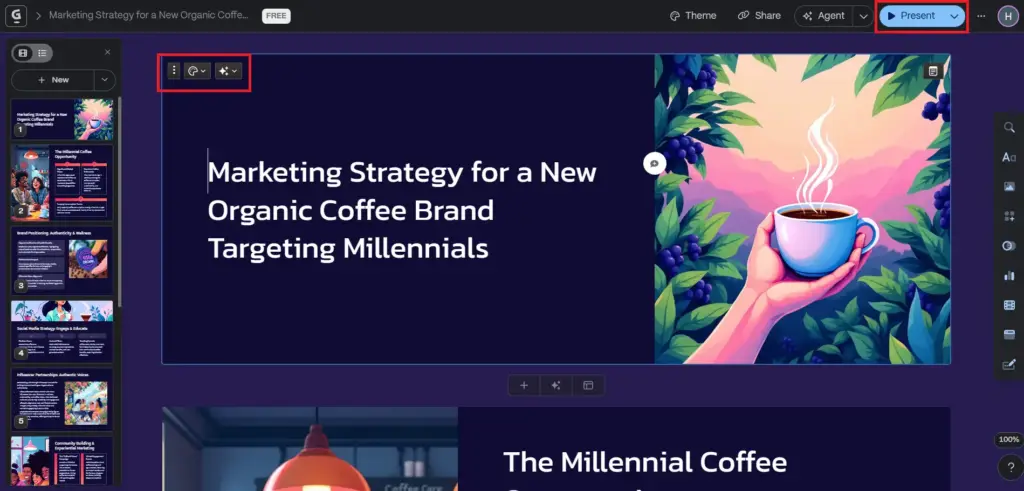
Once finished, use the “Edit with AI” chat box on the right. You can type commands like “Change this image to something more professional” or “Make this text shorter,” and the AI will execute the edit.
Once satisfied, click “Share” in the top right. You can set permissions to “Public” or “Password Protected” and send the link to your audience.
Gamma App export to PPT
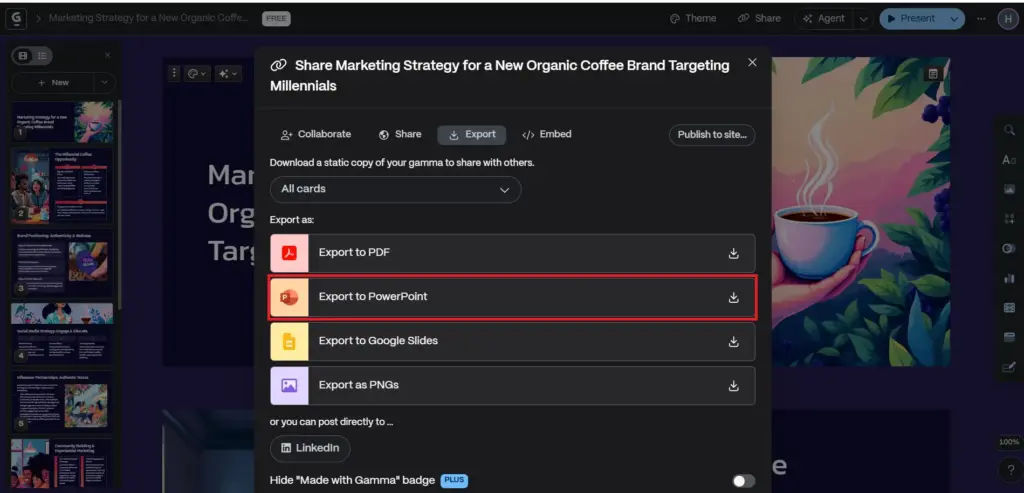
A crucial aspect of our Gamma App review is testing the export functionality. Many corporate users cannot use web links; they need a physical .pptx file.
How to Export:
- Open your presentation in the editor.
- Click the Share button in the top right corner.
- Select Export.
- Choose Export to PowerPoint.
It is important to set realistic expectations. Gamma uses modern web-based layouts, while PowerPoint handles layouts differently. As a result, some formatting or layout adjustments may be needed after exporting to PPT.
- Text as Images: To preserve complex layouts, Gamma sometimes exports specific text blocks, diagrams, or smart layouts as static images in PowerPoint. This means you cannot edit that specific text once it is in PPT.
- Layout Shifts: Simple slides convert well, but slides with complex columns or galleries may look slightly misaligned in PowerPoint.
- Loss of Interactivity: Any embedded websites, GIFs, or specific Gamma interactive elements will not function in the PowerPoint file.
Pricing
As of late 2025 and moving into 2026, Gamma continues to refine its pricing model. It operates on a “Freemium” basis.
| Plan | Monthly Price (Annual Billing) | Key Features | AI Credits |
|---|---|---|---|
| Free | $0 | 400 one-time credits, up to 10 cards/prompt, basic exports with watermark, unlimited presentations | 400 one-time |
| Plus | $8/user ($10 monthly) | Unlimited AI creations, no watermark, advanced image models, PDF/PPT export | 1,000/month |
| Pro | $18/user ($20 monthly) | Everything in Plus + premium AI models, custom branding/fonts, detailed analytics, API access, 60 cards/prompt | 4,000/month |
| Ultra | $100/user | Everything in Pro + most advanced models, 100 custom domains, early feature access, 75 cards/prompt | 20,000/month |
Pros & Cons
To provide a balanced Gamma App review, here is a summary of the strengths and weaknesses I observed during testing.
| Pros | Cons |
| Speed: You can get a workable draft in under 60 seconds. | Credit System: The free plan credits are a one-time bonus, not a monthly refill, which limits long-term free use. |
| Design Logic: The “Card” system prevents text from overflowing, solving the biggest headache of manual design. | Export Fidelity: Converting to PowerPoint often results in non-editable elements or layout shifts. |
| Media Integration: Easily embed GIFs, YouTube videos, and websites directly into slides. | Limited Customization: You cannot drag items pixel-by-pixel like in PowerPoint; you are locked into the grid system. |
| Ease of Use: Much shallower learning curve than professional design software. | Requires Internet: It is a cloud-based tool; you need a connection to create, edit, or present via the web. |
Gamma App Alternatives
If, after reading this Gamma App review, the tool doesn’t feel right for your specific needs, the most direct competitor to consider is Beautiful.ai.
Beautiful.ai vs. Gamma App
Gamma: Gamma is a “content-first” engine. It acts more like a flexible document that transforms into a presentation. If your priority is speed—turning a raw idea, a text prompt, or a long document into a deck instantly—Gamma is generally faster and more fluid than Beautiful.ai.
Beautiful.ai: This tool relies on “Smart Slide” technology. Instead of generating content from scratch, it focuses heavily on design intelligence. It restricts where you can place elements to ensure the slide always looks professional. It is the best choice for corporate teams that need strict brand consistency and a traditional, polished slide look.
Conclusion
So, what is the final verdict of our Gamma App review?
Is Gamma App the “PowerPoint Killer”? Not exactly. If you need a pixel-perfect presentation where you control every single line spacing and shape for a high-stakes Fortune 500 keynote, you will still likely need PowerPoint or a professional designer.
However, for the other 90% of presentations—internal updates, educational summaries, sales decks, and quick pitches—Gamma App is an incredibly efficient tool. It effectively solves “blank page syndrome.” It creates a presentation that is “good enough” to “great” in a fraction of the time it takes to do it manually.
If you are willing to accept that the export to PowerPoint isn’t flawless, Gamma is a productivity tool worth adding to your workflow.
FAQs
Is Gamma App free?
Gamma App offers a free tier, but it is not “free forever” regarding AI usage. You get 400 credits upon signing up. Generating a presentation costs roughly 40 credits. Once these credits are gone, you cannot use the AI features unless you upgrade to a paid plan or earn credits by referring new users.
Can I use Gamma App offline?
No, Gamma is a browser-based application. You need an internet connection to create and edit. However, once you export your file to PDF or PowerPoint, you can present those files offline.
Does Gamma App support other languages?
Yes, Gamma creates presentations in many languages. You can type your prompt in English, Spanish, Indonesian, etc., and the AI will generate the content in that language.
Is the content generated by Gamma unique?
The AI generates content based on Large Language Models. While the phrasing is generally unique, the information is based on general knowledge. I always recommend fact-checking any data or claims the AI produces, as it can occasionally “hallucinate” incorrect facts.