

You have a brilliant lesson plan or assignment, but turning it into a presentation feels like a chore. You waste hours tweaking fonts and layouts when you should be focusing on the actual content. This drains your energy and kills your productivity.
In this Slidesgo review, we explore a game-changing library of templates for teachers and students. I will show you how to create stunning, professional slides in minutes, allowing you to spend less time designing and more time inspiring.
Also Read: The 5 Best AI Presentation Makers
What is Slidesgo?
As we dive into this Slidesgo review, it’s important to understand that it is a versatile AI-powered presentation tool that provides a massive library of ready-to-use templates for Google Slides Templates, PowerPoint, and Canva. It goes beyond simple design by offering an AI presentation generator that builds slides from scratch based on your prompts.
For educators, it serves as a complete classroom assistant with specialized tools like:
- AI Lesson Plan Generator: To structure curriculum instantly.
- AI Quiz Generator: To create quick assessments.
- AI Icebreaker Generator: To boost student engagement.
The Best Features of Slidesgo
The standout feature highlighted in this Slidesgo review is the AI Presentation Maker. This tool acts as a creative assistant that transforms a simple prompt into a professional deck in seconds. It doesn’t just provide a layout; it generates structured content and selects matching visuals tailored to your specific topic.
- AI Presentation Maker: Instantly creates a full slide deck from a short description or prompt.
- PDF to PPT Converter: Upload a PDF or Word document, and the AI will summarize it into editable slides.
- Education Tools: Specialized generators for Lesson Plans, Quizzes, and Icebreakers designed specifically for teachers.
- Style & Tone Customization: You can set the “vibe” of your presentation by choosing a tone (like Professional, Casual, or Creative) and selecting a specific image style such as Photo, Illustration, or 3D Render to match your audience perfectly.
How to Make a Presentation in Slidesgo
In this section of our Slidesgo review, I will show you how to quickly turn your ideas into a professional presentation using Slidesgo’s AI tools. This method helps you save time and skip the stress of designing from scratch.
1. Access Slidesgo
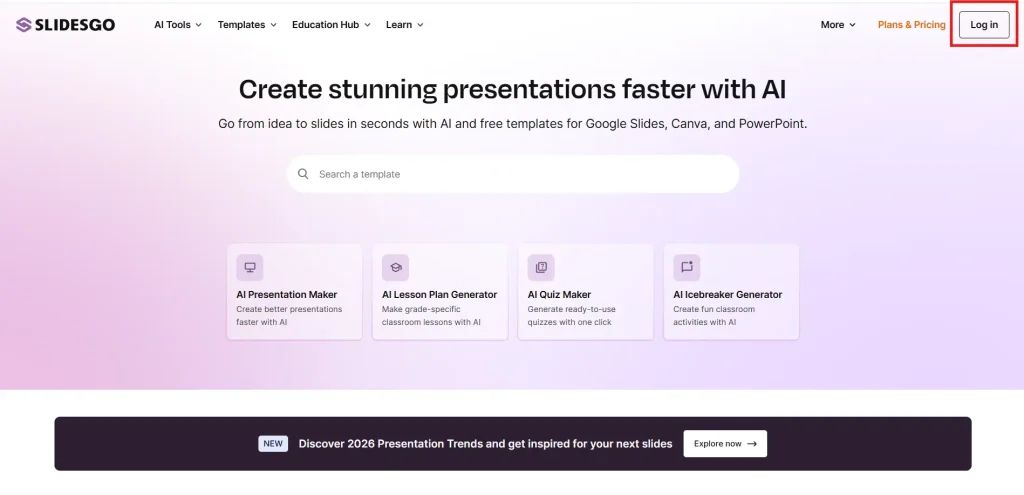
Visit the Slidesgo homepage to start. This is your main dashboard where you can see different AI tools like the Quiz Maker or Lesson Plan Generator, but for this guide, we are focusing on the presentation tool.
2. Login to Your Account
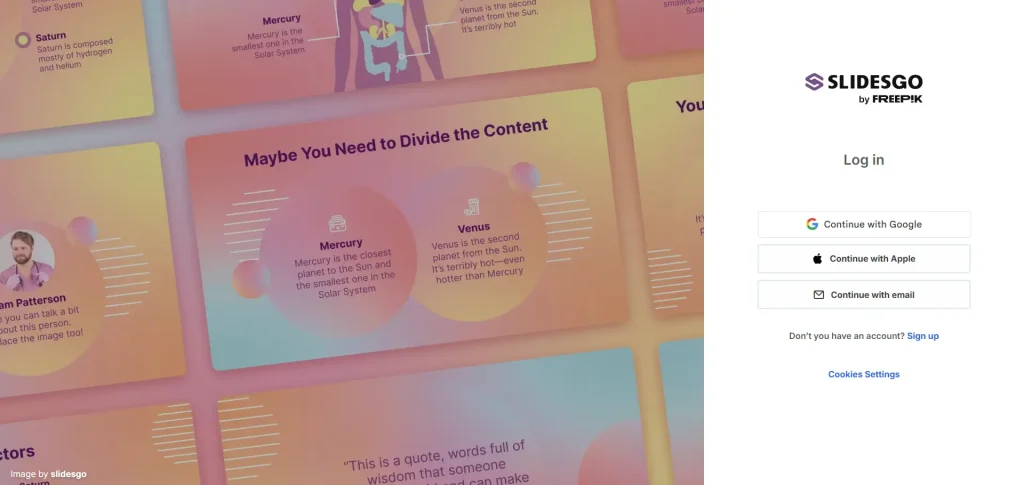
Before you can create or download, you must sign in by clicking the Login button at the top-right of the screen. You can link your existing Google or Apple account to register instantly.
Note: While some features are free, unregistered users cannot download templates. By logging in for free, you increase your limit to 3 downloads per month.
3. Create New Presentation
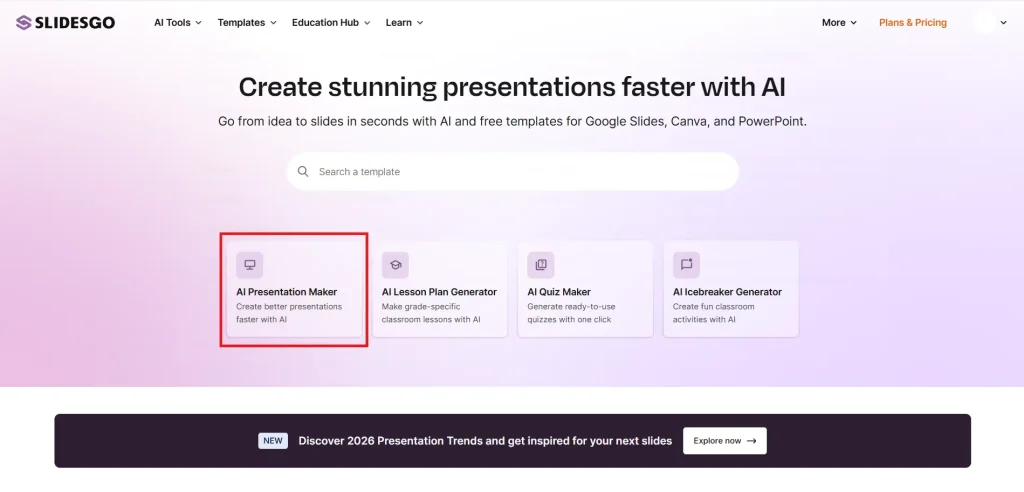
Click on the “AI Presentation Maker” card found on the main screen. This action opens the specialized tool that will help you turn your basic ideas into a full set of slides in just a few seconds.
4. Enter Your Prompt
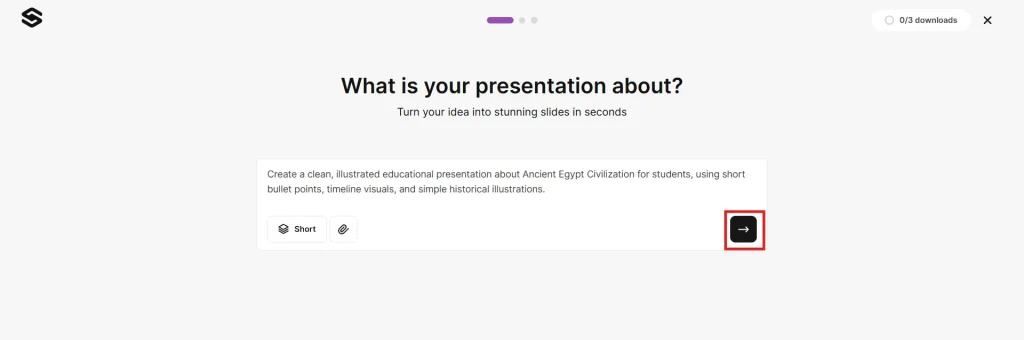
In the box provided, type a detailed description of your topic, such as “Ancient Egypt for students”. You can also upload a PDF, DOCX, or TXT file (up to 25 MB) to use as a source for the AI. After describing your topic, select your preferred slide length, such as a Short (7-14 slides) deck or an Informative (14-18 slides) deck. Once everything is set, click the “Get Started” button to begin the generation process.
5. Select a Theme

Browse the library and pick a design that matches your topic, like a vintage theme for a history lesson. While there are many free options, remember that themes with a gold crown icon are reserved for premium users who have a paid subscription. Once you have selected your favorite template, click the “Continue” button to proceed to the content review stage.
6. Review Content
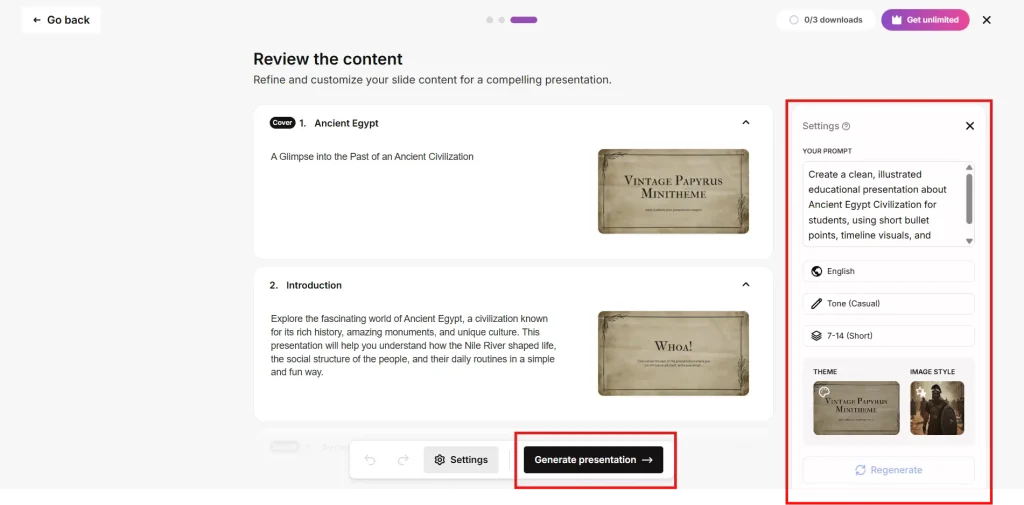
Take a moment to look over the outline and text the AI has created for you. You can use the settings on the right to change the language, tone (like casual or professional), or image style before you click the “Generate presentation” button to finish the build.
7. Download File
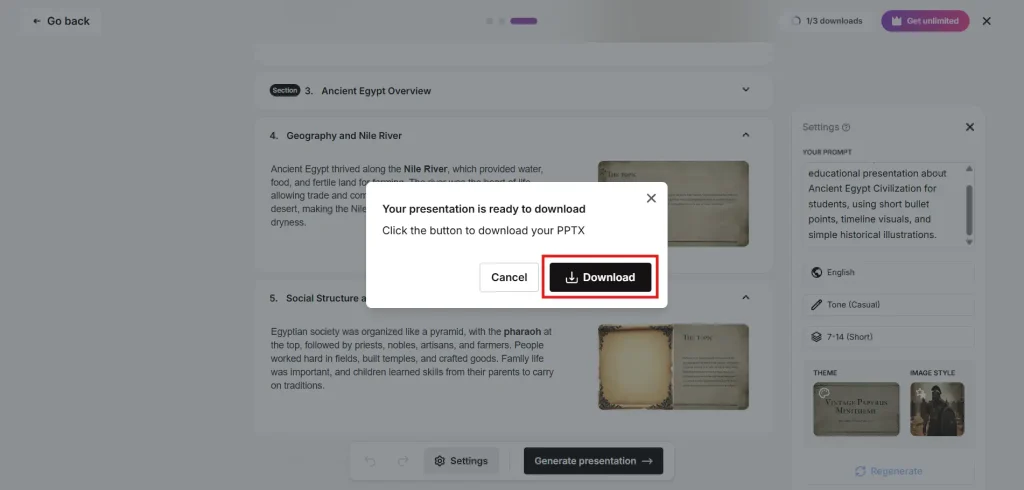
Once your slides are ready, a window will pop up saying your presentation is ready to download. Click the “Download” button to save your work as a PPTX file, which is fully compatible with PowerPoint, Google Slides, or Canva.
How to Open PPT in Canva
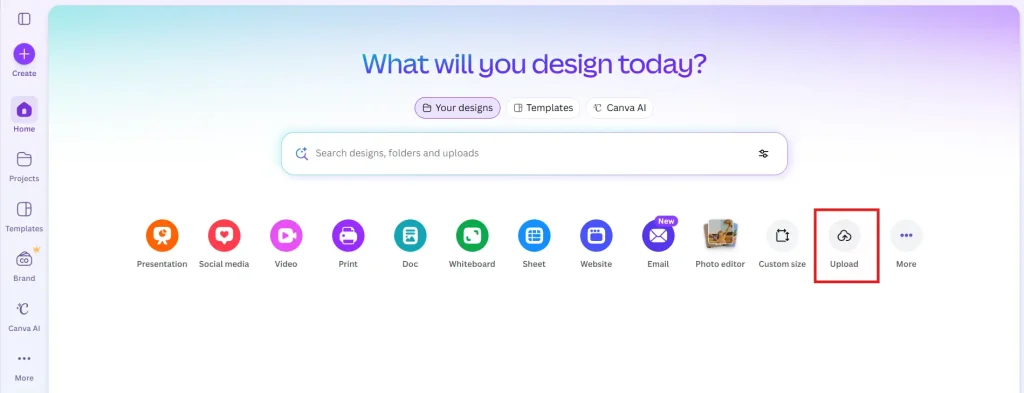
If you want to edit your PPT result on Canva to access more stickers, animations, and sharing features, follow these simple steps:
- Open Canva: Log in to your account at Canva.com on your desktop browser.
- Upload the File: On the homepage dashboard, simply drag and drop your downloaded Slidesgo PPTX file anywhere on the screen, or click “Upload” at the top right.
- Wait for Import: Canva will automatically convert your PowerPoint file into a fully editable Canva design.
- Open & Edit: Find your presentation in the “Projects” or “Recent Designs” section and click it to start customizing your slides.
How to Open PPT in Google Slides
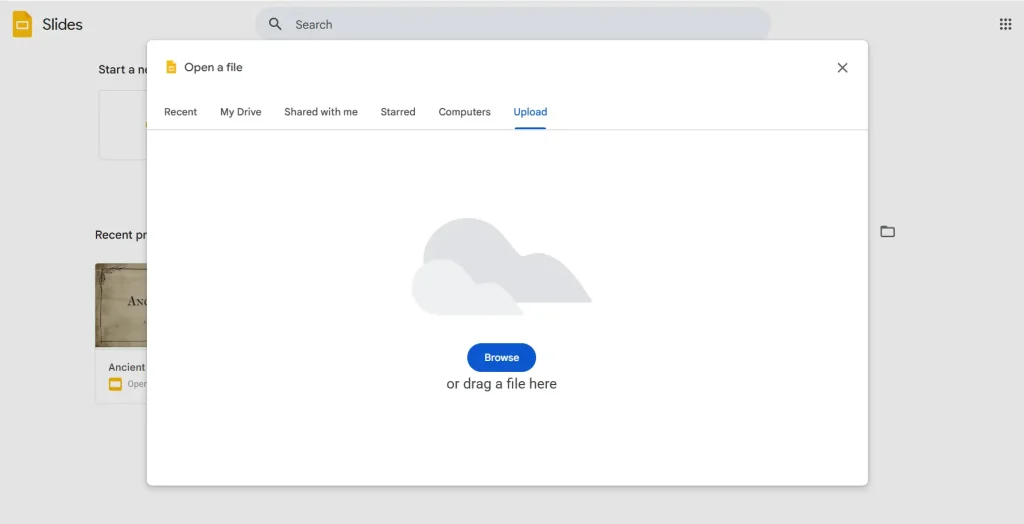
If you are already working within Google Slides and want to bring in your new Slidesgo design, follow this quick snippet:
- Access Google Slides: Open slides.google.com in your browser.
- Open File Picker: Click the folder icon (“Open file picker”) located in the top-right corner of the main dashboard.
- Upload Your File: In the window that pops up, select the Upload tab.
- Select or Drag: Either drag and drop your downloaded Slidesgo PPTX file into the window or click “Select a file from your device” to browse and upload it.
- Edit Directly: Google Slides will automatically process and open your file as an active presentation, ready for editing.
Slidesgo Review: Pricing
I know that choosing between free and paid tools is a big decision for educators. Based on my review of the platform, I’ve analyzed the costs to see which plan offers the best value for your classroom or studies. Here is how the numbers stack up:
| Plan | Price | Features |
| Free | $0 | • 3 AI downloads per month • Slidesgo credit slide required • Ad-supported • Access to free templates only |
| Premium | $3 – $5 | • Unlimited downloads (150/month) • 15,000+ premium templates • No ads & priority support • Remove Slidesgo credit slides |
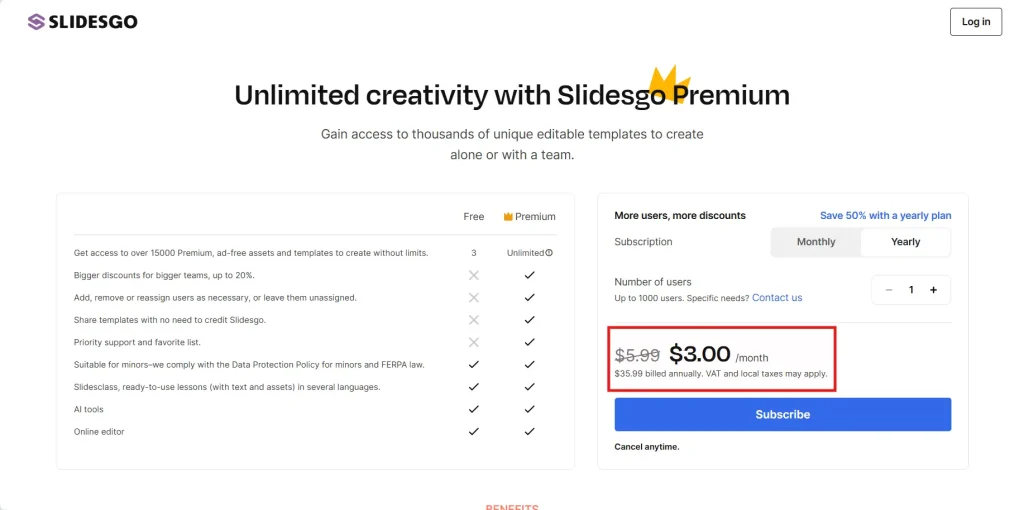
While I found the free version useful for a quick project, that 3-download cap disappears before you know it. If you’re someone like me who creates presentations constantly, the Premium plan feels like a huge relief. It opens up thousands of exclusive templates and ensures you never have to worry about hitting a download wall again.
Slidesgo Vs Gamma App
In this Slidesgo review, I found that these two tools serve very different needs.
- Choose Slidesgo if: You already have your content ready and just need a beautiful “skin” or theme to make it look professional. It is much better for educational content because of its specialized icons and illustrations for teachers.
- Choose Gamma App if: You are starting with nothing but a topic. Gamma is “smarter” at writing the content for you and creating unique layouts that don’t look like traditional slides.
Also Read: Gamma App Review 2026: The Best AI Presentation Makers?
Slidesgo Review: Pros & Cons
After testing all the features for this Slidesgo review, I’ve summarized what makes this tool great and where it still falls short. This list will give you a clear picture of what to expect before you start your first project.
| ✅ Pros | ❌ Cons |
| Wide Range of Themes: You can choose from thousands of different designs for any subject, like history, science, or business. | Free Plan Limits: If you use the free version, you are limited to only 3 downloads or AI generations per month. |
| Save Time: It saves you a lot of time because the AI creates a full presentation in just a few seconds. | Credit Slide & Attribution: For free accounts, you must add attribution by keeping the Slidesgo credit slide at the end of your presentation to give credit to the designers. |
| High Compatibility: The files are fully compatible with Google Slides, PowerPoint, and Canva, so you can edit them anywhere. | No Live Chat: There is no live customer support to help you instantly if you run into a problem. |
| Easy to Use: The interface is very simple and beginner-friendly, meaning you don’t need any special design skills to make beautiful slides. |
Final Verdict
After testing the platform, my Slidesgo review confirms it is one of the best time-saving tools for teachers and students in 2026. While the free plan is limited, the quality of the designs and the speed of the AI generation make it a top-tier choice for classroom use.
- Is it worth it? Yes. For educators who need to create weekly lessons without the design stress, the ease of use is unbeatable.
- Who is it for? Best for teachers, students, and busy professionals who need high-quality slides that work natively in Google Slides, PowerPoint, or Canva.
- Conclusion: Slidesgo effectively bridges the gap between raw information and a polished presentation, allowing you to focus on teaching rather than designing.